
261 Broad Street
Windsor, CT 06095
(860) 285-0172
support@invisiblegold.com
Your Website Should Be Easy to Edit
Windsor, CT 06095
(860) 285-0172
support@invisiblegold.com
Your Website Should Be Easy to Edit
Uploading Images
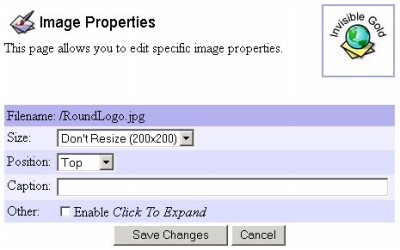
Once an image is uploaded, you can change its size, position, and add a caption. Images must be in either .jpg, .gif, or .png format. Flash .swf files are also usable starting with version 2.9. Note: Although the website will scale your images, you'll need to resize and/or compress them before uploading. This will save time and make the website run faster. Make sure your images are no larger than 1024x768 with a file size of 200KB or less. To compress your image files, use the "Save for Web" feature in Adobe Photoshop, or use Jpeg wizard ( http://www.jpegwizard.com ) |


Image Properties
Note: For animated GIF files, you must set the size to "don't resize" if you want it to animate. The position is relative to the text on the page. Top goes above the text (centered at the top). Left and Right have the text wrapped around the image. Bottom is centered below the text. Click to Expand allows the website visitor to click on the image to see a larger version. |
See Also:
| Online Documentation Home, Invisible Gold Quick Tour, Template Library, Users and Groups, Shopping Cart, Mailing Lists, Uploading Images, Traffic, Approvals, Banner Ads, Login/Logout, Email Newsletters, Advanced Button, Moving Pages, System View, Security, System Settings, Hosting Invisible Gold Powered Websites, Generate a PayPal Client ID, Terms, Useful HTML Guide, Private Client Areas |
Keywords:
| Upload, Image Properties |
Invisible Gold, LLC was founded in 2001 as a web design and internet software company. The owner, John Waiveris, wanted to enable people to manage their own websites. John is active in the Windsor community and the Invisible Gold website software is used daily by 600 businesses.
Latest News
- Website Performance TestingTwo tools for testing website speed
- Meta Tags vs. Keywords: Your Site's Visibility
- Don't Get Tricked By "Domain Registry of America"The Domain Registry of America has recently sent out a countless number of letters and emails in a campaign to get you to switch to their domain registry service by using language that suggests that your domain will expire, and that in order to prevent losing it, you must register with their company. The email is disingenuous at best and fraud at its worst.
Contact Us
Windsor, CT 06095
(860) 285-0172
support@invisiblegold.com
Your Website Should Be Easy to Edit
2026 © All Rights Reserved. Terms of Service